View Logs
In the Device module, you can access the controller logs to monitor services, detect failures, or perform diagnostics. The log viewer displays key information for maintenance and incident resolution.
To View Controller Logs
- Go to Devices > Devices in the main menu.
- Select the Controllers tab.
- Locate the controller (Hub) in the list using the search bar or you can also scroll through the list to locate it manually.
- In the Actions column, click the View Logs icon.
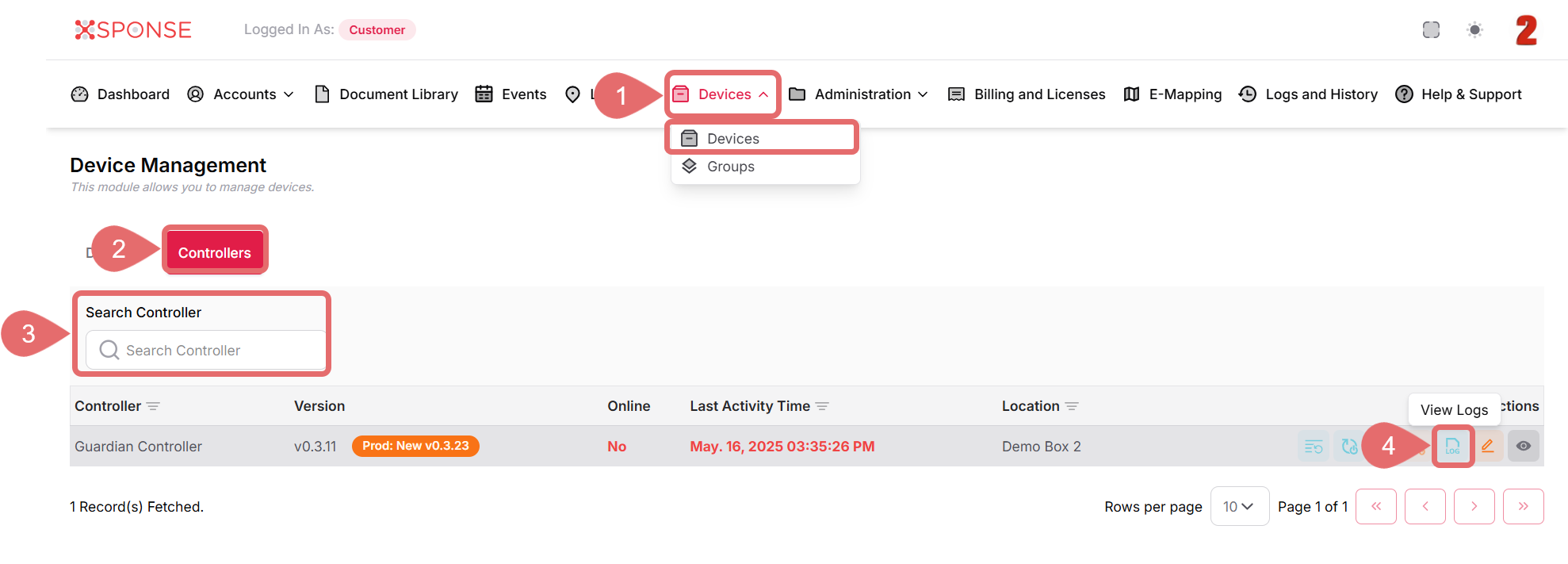
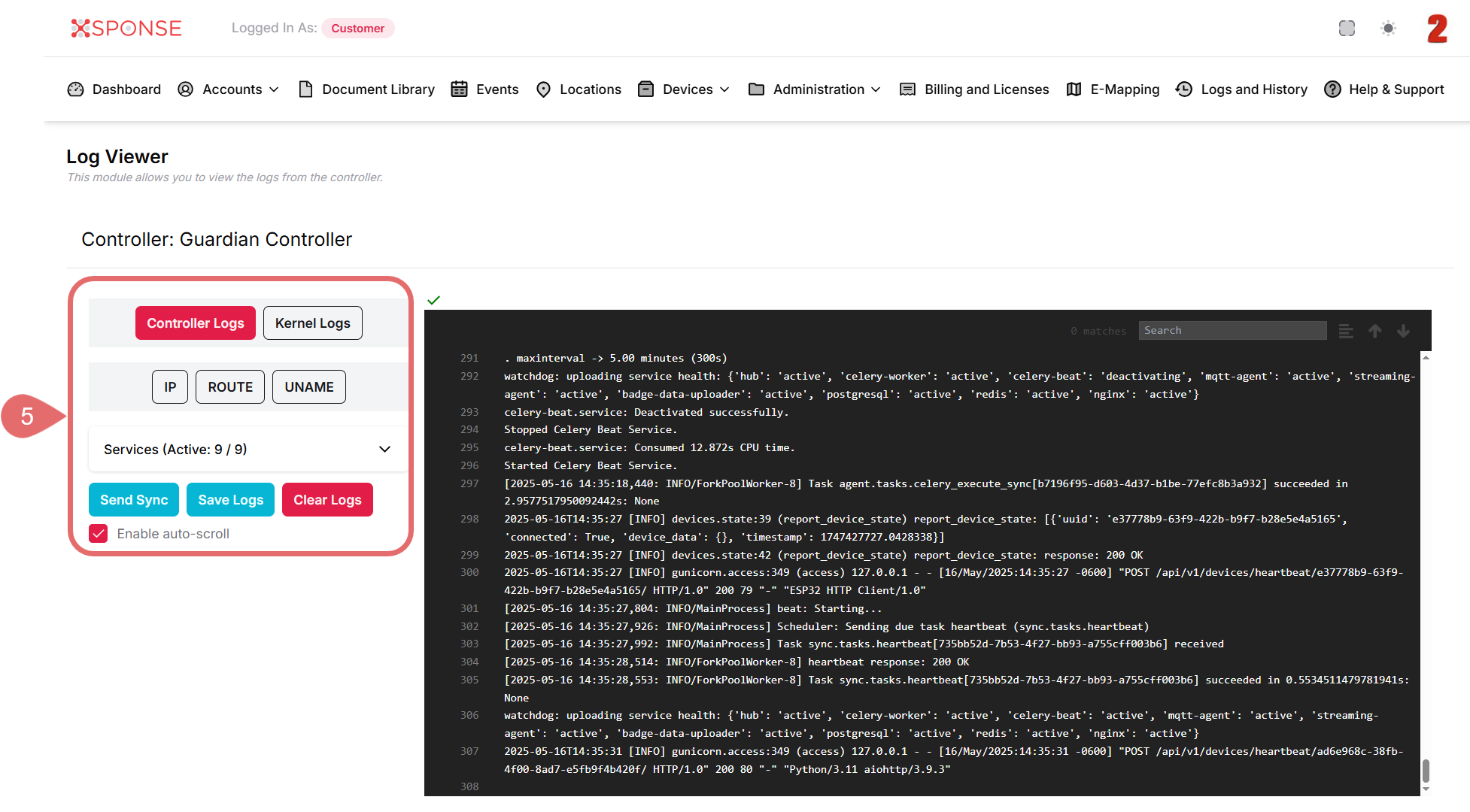
- The Log Viewer panel will open, displaying multiple log sections:
- Log Types
- Controller Logs: General activity logs from the controller, such as:
- Service start/stop events
- Configuration updates
- Connection attempts
Useful for monitoring daily operations and identifying common issues.
- Kernel Logs: Low-level system logs from the operating system’s kernel (the core of the system).
These are more technical and can include:- Hardware interaction issues
- Driver messages
- System errors
Typically used by technical support or engineers for deeper diagnostics.
- Controller Logs: General activity logs from the controller, such as:
- System Info (Reference Only)
These are displayed for informational purposes to assist with support or technical review:- IP: IP address assigned to the controller.
- Route: Network routing information, useful for troubleshooting connectivity.
- Uname: System environment and version details (OS, kernel, architecture).
- Available Actions
Below the logs display area, you can perform the following actions:- Send Sync: Manually triggers a sync to ensure logs are up to date.
- Save Logs: Downloads the currently displayed logs for offline analysis or support.
- Clear Logs: Deletes the current logs from the interface view (does not delete system history).
- (Optional): Enable Auto Scroll
You can toggle the Enable Auto Scroll option to automatically keep the newest logs in view, especially useful when monitoring logs in real-time.
- Log Types
Why is this important?
Access to controller logs helps detect and resolve issues, verify that services are running correctly, and maintain the stability and security of the system.
See Also
To complement your knowledge of this process, check the following pages: