Add a New Group
In the Administration module, you can create groups to organize your contacts effectively. This feature helps streamline communication by allowing you to manage contacts in bulk based on their group assignments.
To Add a New Group
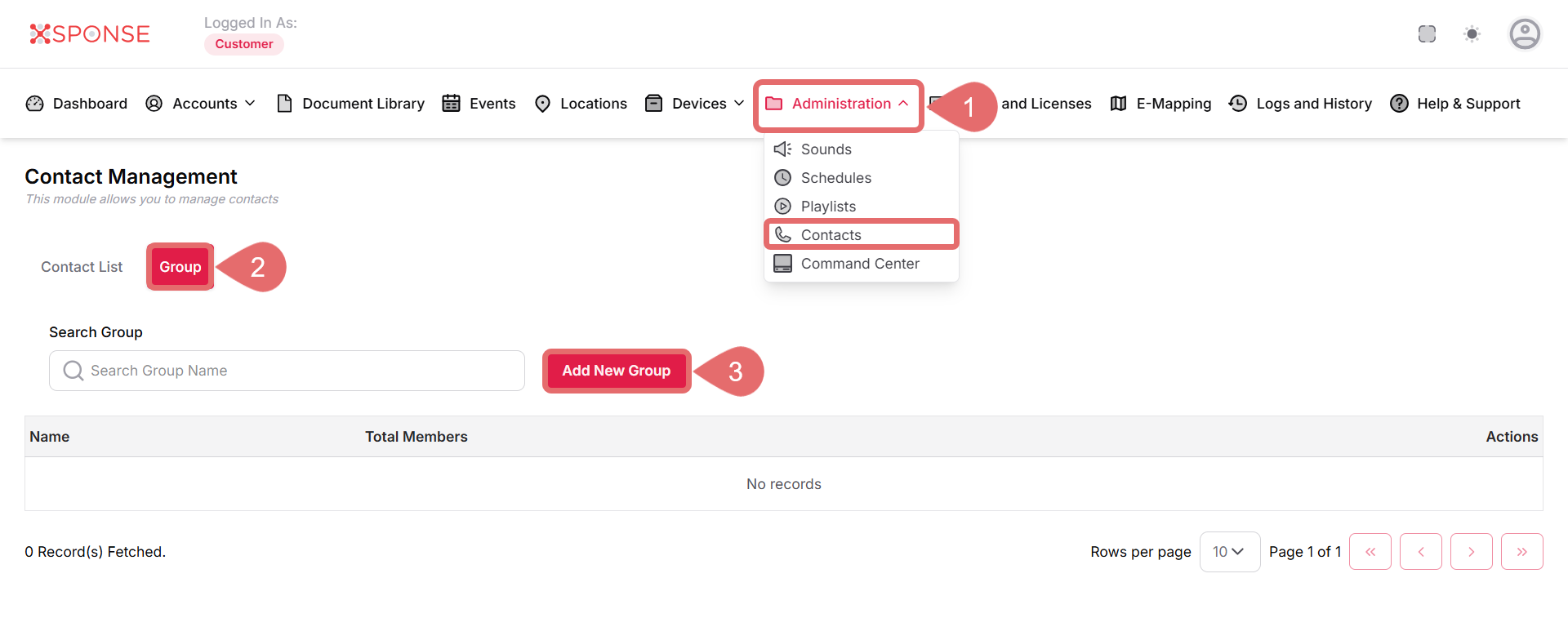
- Go to Administration > Contacts.
- Click Group.
- Select Add New Group.
- Fill in the Group Details:
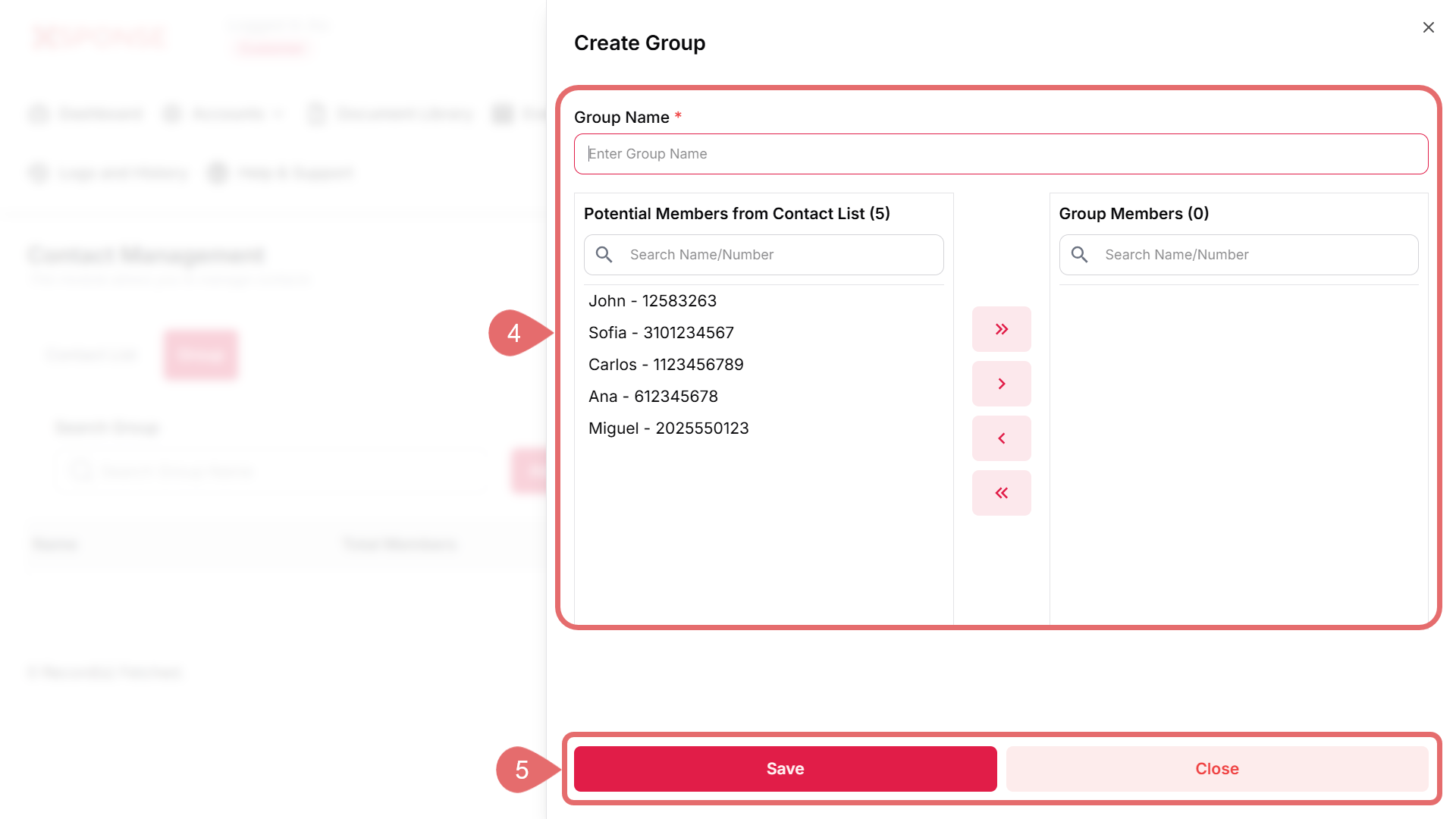
- Group Name: Enter a descriptive name for the new group. This field is required.
- Potential Members from Contact List: In this section, you will see a list of contacts that can be added to the group.
- Use the search box to find specific contacts.
- Select one or more contacts and move them to the Group Members section using the arrows.
Contact Selection RequiredYou must select at least one contact to save the group.
- Group Members: This area will display the members you have added to the group. You can remove members if needed.
- Click Save to create the group, or Close to discard the changes.
Important Considerations
- Create groups based on specific projects, departments, or roles to enhance communication.
- Periodically check and update group memberships to ensure accuracy.
See Also
To complement your knowledge of this process, check the following pages: