Set a System User to Inactive
In the Accounts module, you have the option to deactivate a user account. This action removes the user’s access to the system without deleting their account or historical records. It’s helpful in situations where a user leaves the organization, changes roles, or is temporarily not using the platform.
Setting a user as inactive ensures that permissions are no longer applied, but audit trails, logs, and activity history remain available for review and accountability.
To Set a User as Inactive
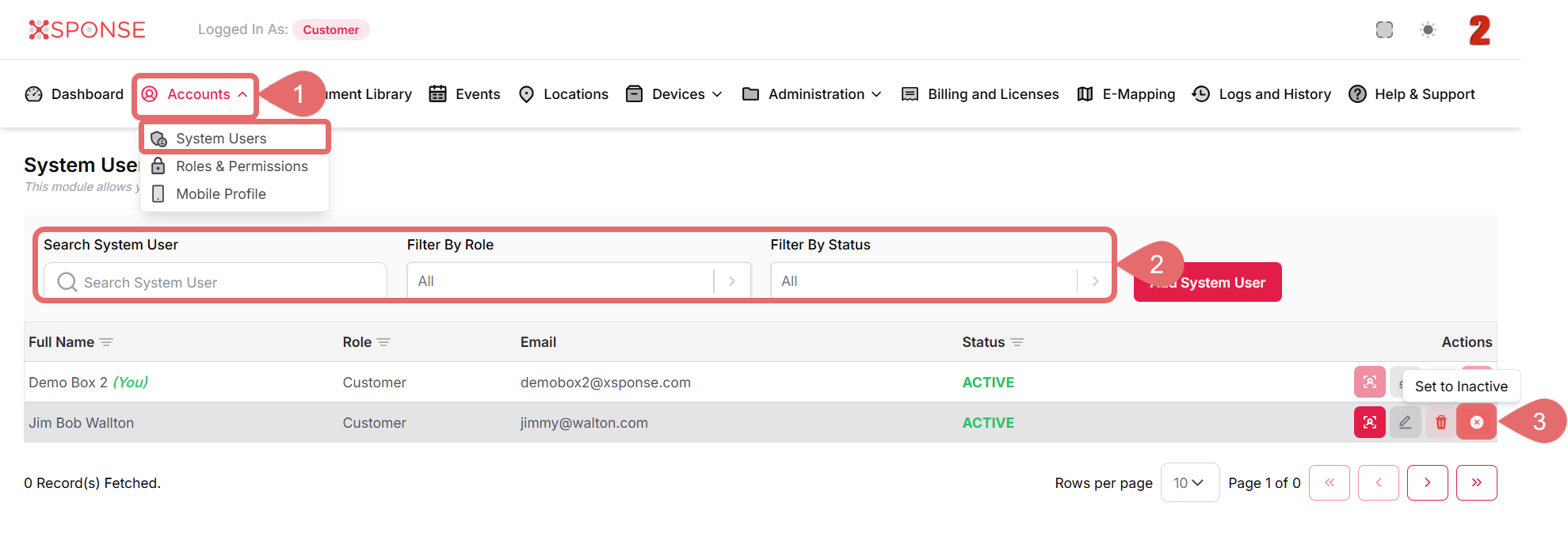
- Go to Accounts > System Users.
- Use the search bar or filters to locate the user you want to set as inactive.
- In the Actions column, click the Set to Inactive icon.
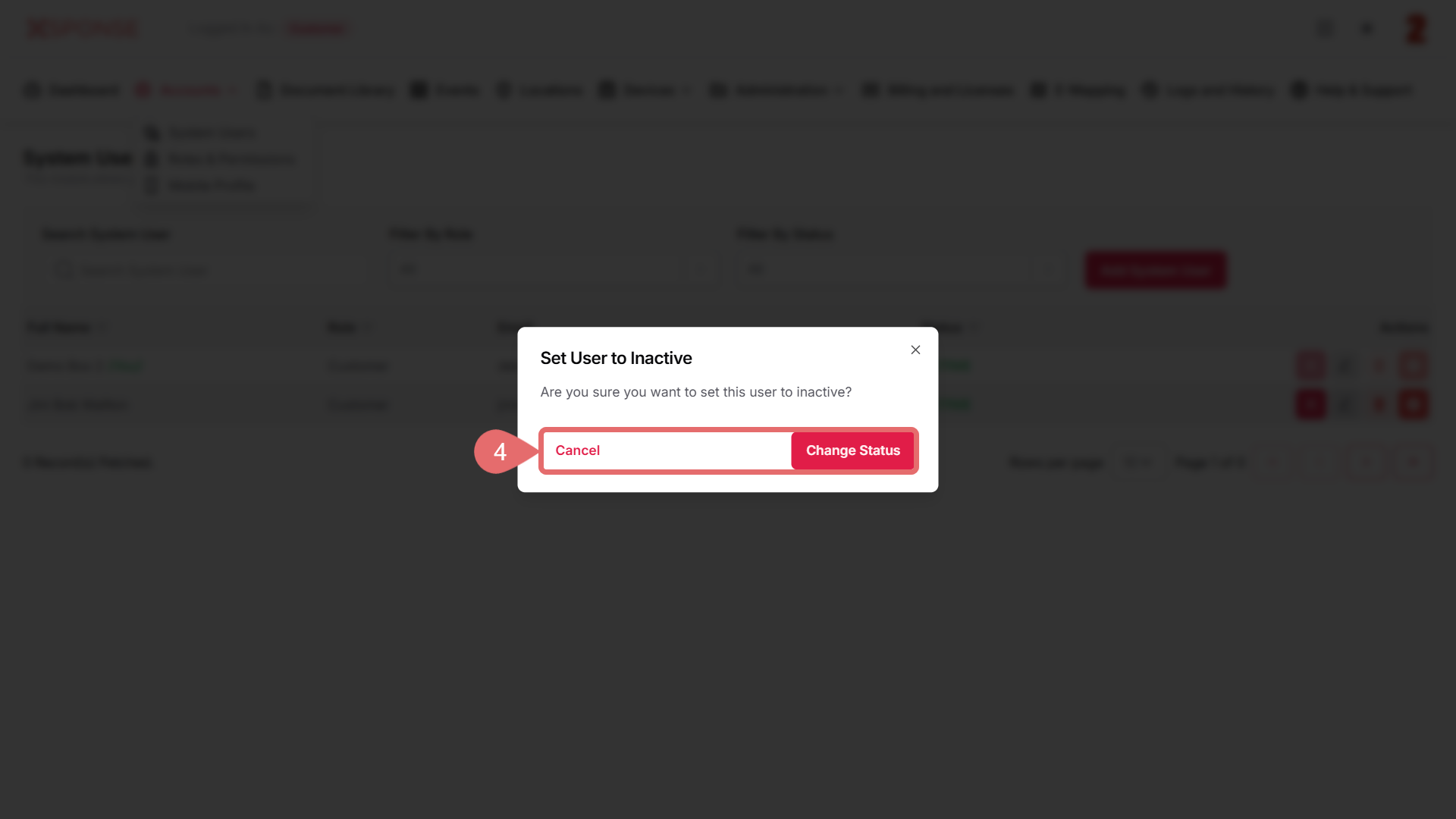
- Click Change Status to confirm the action, or Cancel to exit without making changes.
Important Note
You cannot deactivate your own user account while logged in.
See Also
To complement your knowledge of this process, check the following pages: